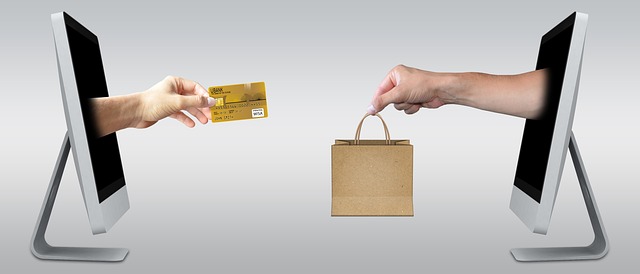
Payment Reminders in Quickbooks Desktop
Introduction
Ah, the sweet sound of money flowing in! But wait—what about those pesky unpaid invoices? If you’re using QuickBooks Desktop, you might be wondering how to set up those oh-so-necessary payment reminders. Fear not, for this guide will lead you through the process with the grace of a cat walking on a tightrope (minus the risk of falling, of course). 🎪
Setting Up Payment Reminders
First things first, let’s get you set up so you can remind your customers to pay without having to send a personal message every time. Here’s how you can do it:
- Open QuickBooks Desktop: Launch your QuickBooks and take a deep breath. You’ve got this!
- Navigate to Preferences: Go to the Edit menu, then select Preferences. This is where the magic happens.
- Payment Reminders: In the left menu, click on Sales & Receivables and then find the Payment Reminders tab. This is your control center.
- Customize Your Reminders: Here, you can set up how often you want your reminders to go out. Weekly? Bi-weekly? Daily? The choice is yours! Just be careful not to become the annoying person who texts “Did you pay me yet?” every hour.
- Schedule It: You can set a schedule for your reminders to go out. Just remember, if you set them to go out after the due date, it might feel like your invoices have a built-in alarm clock—beep beep, time to pay!
- Save Your Settings: Don’t forget to save your settings. Otherwise, all this effort is just a warm-up for your fingers.
What Happens After Setting Up?
Once you’ve set everything up, QuickBooks will automatically send reminders based on your criteria. But here’s the catch: these reminders only go out once the group selection criteria are met. So if you think you’ll be bombarding your customers with reminders every week, think again. It’s more of a gentle nudge than a full-on shove.
Generating Reports
If you want to keep track of how many reminders have been sent, you can generate a report. This is especially handy if you want to impress your boss or just feel like a wizard controlling the flow of invoices. Go to the Reports menu, and you can customize reports to show the payments you set reminders for. It’s like having a scoreboard, but for invoices!
Final Thoughts
Setting up payment reminders in QuickBooks Desktop can save you time and help you get paid faster. Just remember, while it’s important to remind your customers about their dues, you don’t want to turn into a relentless payment nag. A gentle reminder can go a long way, but too many can lead to a customer running for the hills. Happy invoicing! 💸
 matt.v























 Meet Giovanni Primo Blount: The McDonald's Money Maestro!
 Health
  Fitness
  Lifestyle
  Tech
Tech  Travel
  Food
Food  Education
  Parenting
  Career & Work
  Hobbies
  Wellness
  Beauty
  Cars
Cars  Art
Art  Science
  Culture
  Books
Books  Music
Music  Movies
  Gaming
  Sports
  Nature
  Home & Garden
  Business & Finance
  Relationships
  Pets
Pets  Shopping
  Mindset & Inspiration
  Environment
  Gadgets
  Politics