
Editing Tools in Microsoft Word
Introduction to Editing Tools
Editing is an essential part of the writing process, and Microsoft Word offers a variety of tools to help writers refine their work. Whether you're drafting a novel, preparing a report, or crafting an email, these tools can make your editing journey smoother and more efficient. Let’s dive into some of the most helpful features that Word provides to polish your writing! ✨
1. The Review Tab
The Review tab in Microsoft Word is like your personal editing assistant. Here, you can find tools for tracking changes, adding comments, and comparing documents. This is particularly useful when collaborating with others, as it allows you to see edits and suggestions made by different contributors.
2. Spelling and Grammar Check
One of the most basic yet powerful features is the Spelling and Grammar Check. Word automatically underlines spelling mistakes in red and grammatical errors in blue. By right-clicking on these underlined words, you can see suggestions for corrections. It’s a quick way to catch those pesky typos before finalizing your document. 📝
3. Thesaurus and Word Count
Need a synonym to spice up your vocabulary? The built-in Thesaurus is just a click away. Highlight a word, right-click, and select Synonyms to explore alternatives. Additionally, the Word Count tool helps you keep track of your document's length, ensuring you meet any specified limits.
4. Customizing Your Editing Experience
Microsoft Word allows you to personalize your editing tools to suit your preferences. You can adjust settings for spelling and grammar checks, including what types of errors you want Word to flag. This customization can help you focus on the specific aspects of your writing that matter most to you.
5. Read Aloud Feature
Sometimes, hearing your text can reveal errors that your eyes might miss. The Read Aloud feature reads your document back to you, allowing you to catch awkward phrasing or missing words. This auditory feedback can be a game-changer for many writers. 🎧
6. Comments and Track Changes
If you're working with others, the Comments feature is invaluable. You can leave notes for yourself or collaborators, making it easy to discuss specific sections of text. The Track Changes feature highlights all edits made, so you can review them before accepting or rejecting them. This ensures that every change is intentional and agreed upon.
7. Finalizing Your Document
Once you’ve made your edits, it’s time to finalize your document. Use the Document Inspector to check for hidden metadata or personal information that you might want to remove before sharing your work. This step ensures that your document is clean and professional.
Conclusion
Editing doesn’t have to be a daunting task. With the right tools in Microsoft Word, you can streamline your editing process and create polished, professional documents. Whether you’re a seasoned writer or just starting out, these features can help elevate your work. Happy editing! 🌟
 zara_m




























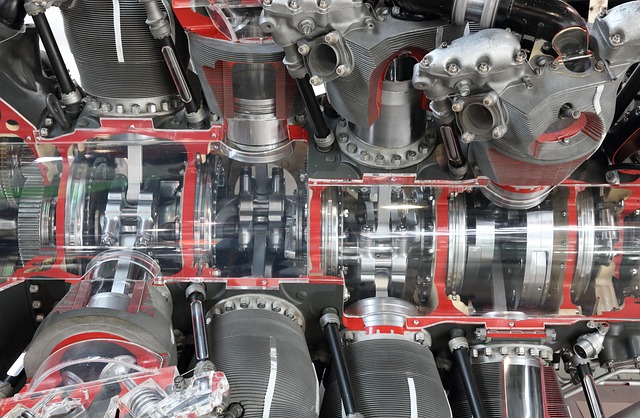

 Piston Engines Vs Turboprop
 Health
  Fitness
  Lifestyle
  Tech
Tech  Travel
  Food
Food  Education
  Parenting
  Career & Work
  Hobbies
  Wellness
  Beauty
  Cars
Cars  Art
Art  Science
  Culture
  Books
Books  Music
Music  Movies
  Gaming
  Sports
  Nature
  Home & Garden
  Business & Finance
  Relationships
  Pets
Pets  Shopping
  Mindset & Inspiration
  Environment
  Gadgets
  Politics